Table of Contents
Windows 11 Setup
Overview
This guide will only cover installation and setup of Windows 11 (including necessary drivers and software. Other Operating System installs are not covered by the guide and may require additional tweaks.
For this section you will need a bootable USB containing the latest Windows 11 using the Windows 11 Media Creation Tool. Once this has been created, create a folder within the USB called “Drivers” and place the .exe file for the WiFi drivers which can be found on the Dell Driver Page. Once this has been completed you can move onto the the rest of the guide.
Initial Install Configuration
Plug in the Windows 11 USB and boot / reboot the laptop. During boot press F2 to enter the BIOS.
You will need to configure the boot order so that the Windows 11 USB is at the top of the list to have priorty over all other boot options.
Once completed, save and exit the BIOS and the system will start the Windows 11 install.
Installing Windows 11
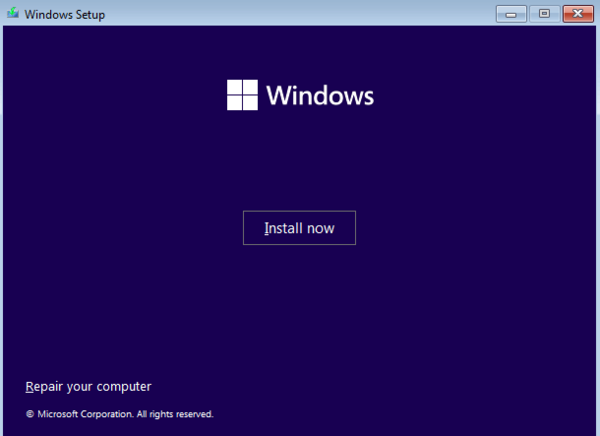
Start the Windows 11 install, you will be able to progress up to the network selection screen. The Windows 11 installer does not include WiFi drivers for the XPS 14 so these must be installed manually at this point.
Installing WiFi Drivers
Once you have reached the network selection screen perform the below:
- Press shift + F10 (or shift + fn + F10) to open the CMD window.
- Type explorer.exe and press enter
- In the new Explorer window that has opened navigate to your bootable USB, into the created 'Drivers' folder and install the WiFi drivers that were copied over.
- Once completed you can close Exporer and return to the Windows 11 OOBE.
Once you have reached the desktop you should now navigate to Add or remove programs and uninstall any unwanted software that comes bundled with the OS, Windows 11 will try to reinstall some of these as part of the initial new-install Windows update deployment so this step will be performed again at the end of the guide.
OS Settings
There are some key settings to change to make use of the OS more comfortable and also match the OEM Dell install.
Disable Enhance Pointer Precision
This is a feature that is supposed to make using a trackpad easier by adding mouse acceleration but if you ever intend to use a standalone mouse it makes movement feel inconsistent.
- Search Mouse Settings in the start menu.
- Disable the Enhance pointer precision toggle.
Touchpad Sensitivity and Click Intensity
These settings come from the OEM Dell install and increase the accuracy / feel of the haptic touchpad.
- Search Touchpad settings in the start menu.
- Ensure Haptic click is turned on
- Expand Haptic click and set the Click intensity to maximum.
- Expand Taps and set Touchpad sensitivity to High sensitivity.
Display Settings
Key display settings and refresh rate changes.
- Right click the Desktop and open Display settings.
- Expand Brightness, untick Change brightness automatically… and turn off Change brightness based on content.
- Turn off Adaptive colour.
- Ensure Desktop resolution is set to 2880×1800.
- The default Scale value is 200% but this can be changed on personal preference.
- Open Advanced display at the bottom.
- Ensure Refresh rate is set to 120 Hz.
- Expand this section and disable Dynamic refresh rate.
Core Isolation Memory Integrity
This is a security feature that runs certain code within a virtualised environment but impacts CPU performance. If you do not intent on running Virtual Machines then it is recommended to turn this off.
- Search Core Isolation in the start menu.
- Disable Memory integrity.
Essential Drivers and Software
If you have not done so already, reboot the system now. This will most likely install some initial Windows updates. Once you have booted back into the OS, follow the below sections to install key utilities and additional setup.
Windows Update
Run Windows update again to check for any additional updates / Windows drivers. This will install the basic Windows dependencies, most of which will be replaced by the Dell OEM drivers.
You may need to reboot several times until Windows no longer shows any new updates to be installed.
Dell Website Drivers
Once Windows update no longer shows any new feature / security / drivers available, navigate to the Dell Driver Page. Either manually enter the device service tag, or allow the Dell website to automatically pick this up using the Support Bridge.
Choose the Find Specific Drivers option to manually download the required drivers, this will take you to a list with two tabs. Ensure you are on the tab that lists your Service Tag (not the DA14260 model name). Download and install all drivers listed - you may need to reboot several times during this proces.
Intel DSA
Going forward Intal Driver & Support Assistsant will be used to keep the chipset and GPU drivers up to date.
Download the Intel DSA Application and allow this to download any new drivers that are required.
Dolby Atmos
The Dolby Atmos certification relies on two components: Dolby Access which can be searched and downloaded from the Microsoft Store, and the OEM key which is not public.
First, search for Dolby Access in the Microsoft Store and download this.
Once completed you can find the OEM key here, this should be downloaded via the Microsoft Store. You will need to reboot for the certificate to update.
Once this has been done, open up the Dolby Access application and ensure Dolby Atmos for Speakers is activated.
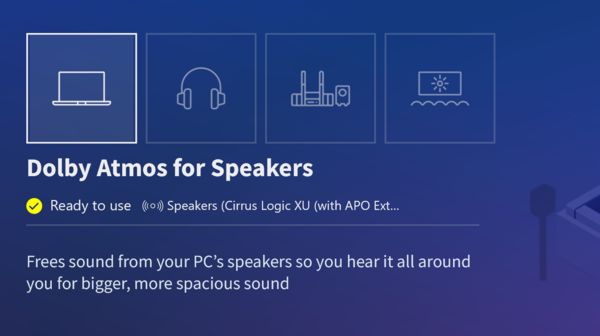
- Navigate to the Settings tab
- Select the Custom 1 profile and enable Surround Virtualizer
- EQ should be left flat and ensure Volume Leveler is off.
HDR and Dolby Vision Calibration
The Dolby Vision certification and display driver should have already been installed as part of the Dell OEM Drivers step, if this has not been installed do this now.
Now perform the below steps:
- Right click the Desktop and open Display settings
- Enable HDR if not already on.
- Click on the arrow next to the HDR option to open HDR Settings
- Expand the HDR toggle and untick Turn off HDR when on battery…
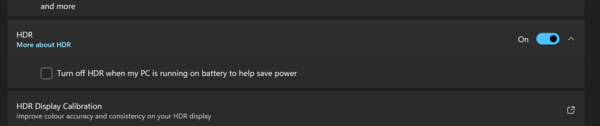
- Enable Auto HDR
- HDR content brightness should be set to 50
Head back to the main Display settings page and go to Advanced display at the bottom. * HDR Certification should show Dolby Vision
Now download the Windows HDR Calibration tool from the Microsoft Store and run this.
- Black level should be set to minimum for OLED displays.
- Both peak brightness levels should be set to the point the pattern disappears (mine was at 650).
- Saturation should be left at default.
- Complete the setup, the profile name can be left at default or changed.
Finally, open the Dolby Access application. Navigate to the Settings tab and then the Dolby Vision sub-tab. Select the Bright profile.
Dell Optimizer
Dell Optimizer is used to control the fan and power profiles on the device.
The Dell Optimizer application should have already been installed as part of the OEM Drivers, open the application and navigate to the Power & Battery section.
It offers multiple fan / power profiles:
- Optimized - 19W package limit and a balanced fan profile.
- Cool - 19W package limit and an aggressive fan profile.
- Quiet - 18W package limit and fan is kept off / low.
- Ultra Performance - 25W package limit and aggressive fan profile.
If you do not plan to install ThrottleStop to configure custom package limits then choose the profile that suits your needs best at this stage. - For use with ThrottleStop choose Optimized.
Final Tweaks
These are extra tweaks that are not 100% required but can help with some small issues when gaming.
Reported VRAM
Some older games will rely on the reported GPU VRAM value to determined which graphical settings to run and will not allow the user to change these. As the B390 is an iGPU it has a dynamic VRAM limit (Up to 18GB) but legacy VRAM queries will show “128 MB” which can cause some games not to launch or have texture loading issues.
The below Registry edit can be performed to manually change this to report “16 GB”:
- Press Win + R and type regedit to open the Registry Editor.
- Navigate to HKEY_LOCAL_MACHINE\SYSTEM\CurrentControlSet\Control\Class
- Within this section you will need to find the folder that corresponds to the GPU (e.g {4d36e968-e325-11ce-bfc1-08002be10318}) - the GPU will have a REG_SZ entry called ClassDesc that has the data “Display adapters”

- The GPU Folder will have a subfolder named 0000 open this and navigate to the GMM folder within this.
- Create a 32bit DWORD entry in the GMM Folder called DedicatedSegmentSize and give it the Hex value of 4000
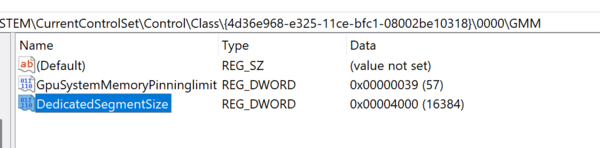
Finally, reboot! Head back to Add or remove programs and uninstall any unwanted software again. Some may have been reinstalled as part of the new Windows 11 install update packages. Setup is now completed.
You can now move on to » Guides/Xps 14 Da14260/Additional Software.